LinkedIn Sales Navigator: Practical GTM Prospecting Notebook
This notebook is a practical reference for understanding how LinkedIn Sales Navigator fits into a modern GTM workflow. The goal is not to memorize every button, but to understand the core process: define the right market, identify target accounts, find the right people, use buying and relationship signals, personalize outreach, and connect the work back to the CRM.
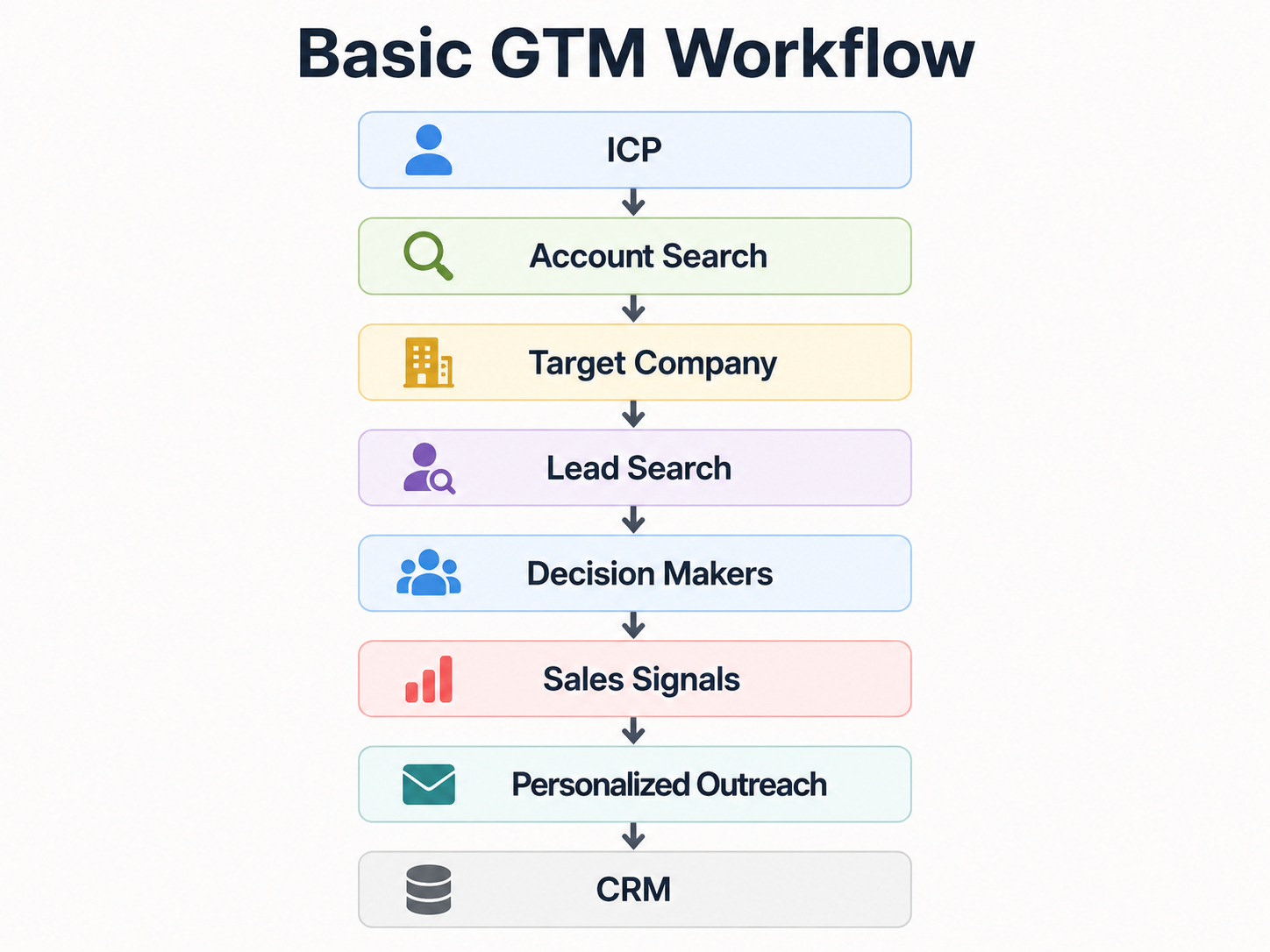
Core idea: ICP → Account → Lead → Signal → Personalized Outreach → CRM.
1. What Is LinkedIn Sales Navigator?
LinkedIn Sales Navigator is LinkedIn’s B2B sales prospecting and relationship-intelligence platform. It adds advanced search, account and lead lists, sales signals, relationship insights, InMail, and CRM-oriented workflows on top of the normal LinkedIn network.
Sales and GTM teams use it to:
- Find target companies.
- Find the right people inside those companies.
- Build and organize prospect lists.
- Identify decision-makers and warm connection paths.
- Monitor prospect and company activity.
- Prioritize accounts using relevant signals.
- Personalize outreach.
- Connect prospecting activity with a CRM.
Simple way to think about it:
LinkedIn = professional network.
Sales Navigator = prospecting and sales-intelligence layer on top of LinkedIn.
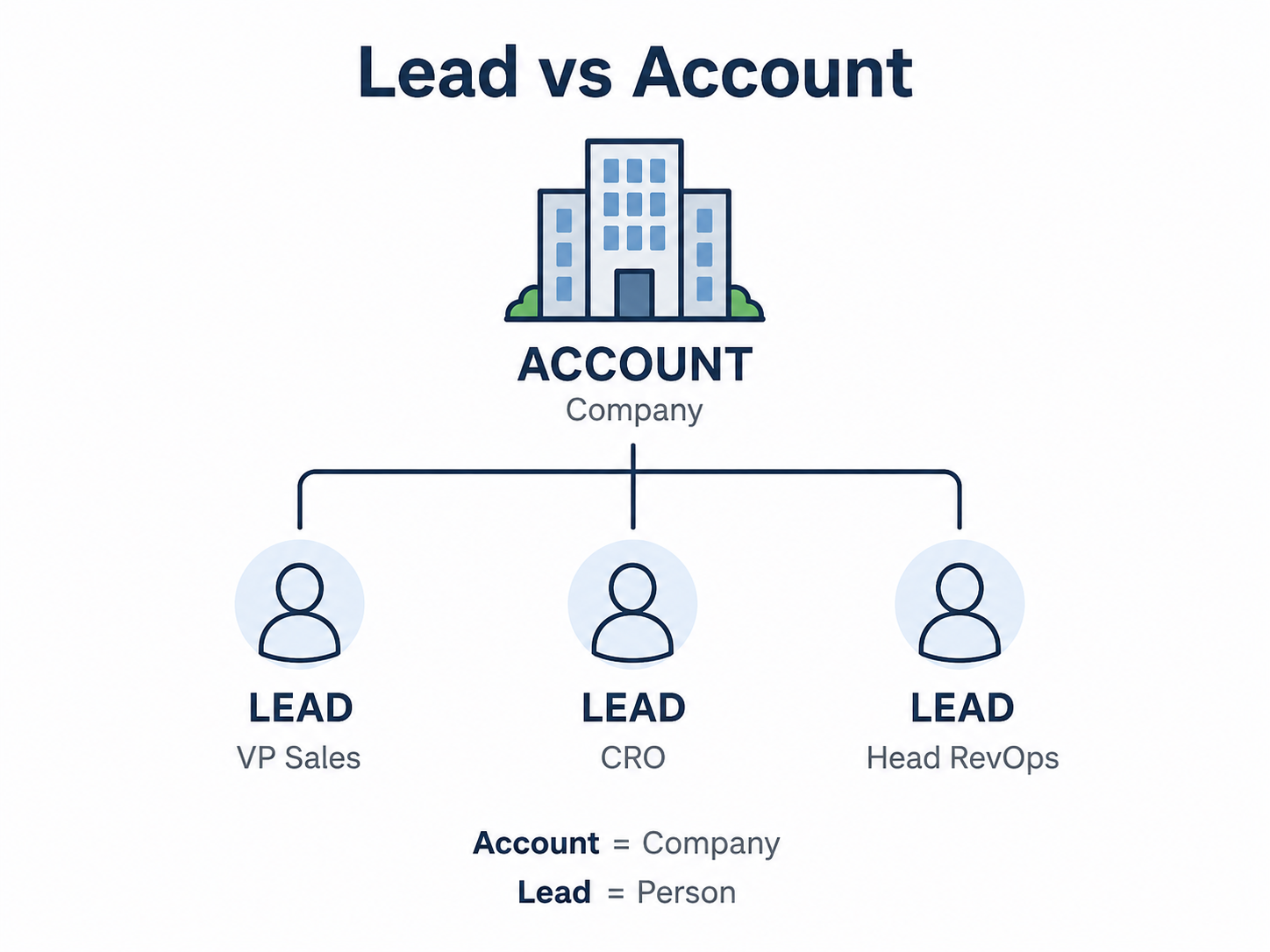
2. Lead vs Account
This is one of the most important concepts in Sales Navigator.
Account = Company
Examples: HubSpot, Personio, Siemens, Salesforce.
Lead = Person
Examples: VP of Sales at Personio, Head of RevOps at HubSpot, or Sales Director at Siemens.
A common prospecting flow is therefore:
Find target Account → Find relevant Leads inside the Account → Research and contact them.
3. Basic GTM Workflow
Sales Navigator is most useful when it is treated as part of a repeatable GTM process rather than simply as a larger LinkedIn search box.
- Define the ICP.
- Find target companies.
- Find the right people.
- Save Accounts and Leads.
- Monitor relevant signals.
- Research the prospect.
- Personalize outreach.
- Contact the prospect.
- Track the relationship and opportunity in the CRM.
4. Define the ICP
Before searching, the team normally defines its ICP — Ideal Customer Profile. The ICP describes the kind of company most likely to be a good customer.
Example ICP:
- B2B SaaS companies.
- Located in Germany.
- 100–1,000 employees.
- Growing sales teams.
After defining the company profile, the team defines the people it wants to reach, for example:
- VP Sales.
- Head of Sales.
- Revenue Operations Director.
- CRO.
The ICP describes the right kind of company. Personas and job-title criteria describe the right people inside those companies.
5. Lead Search
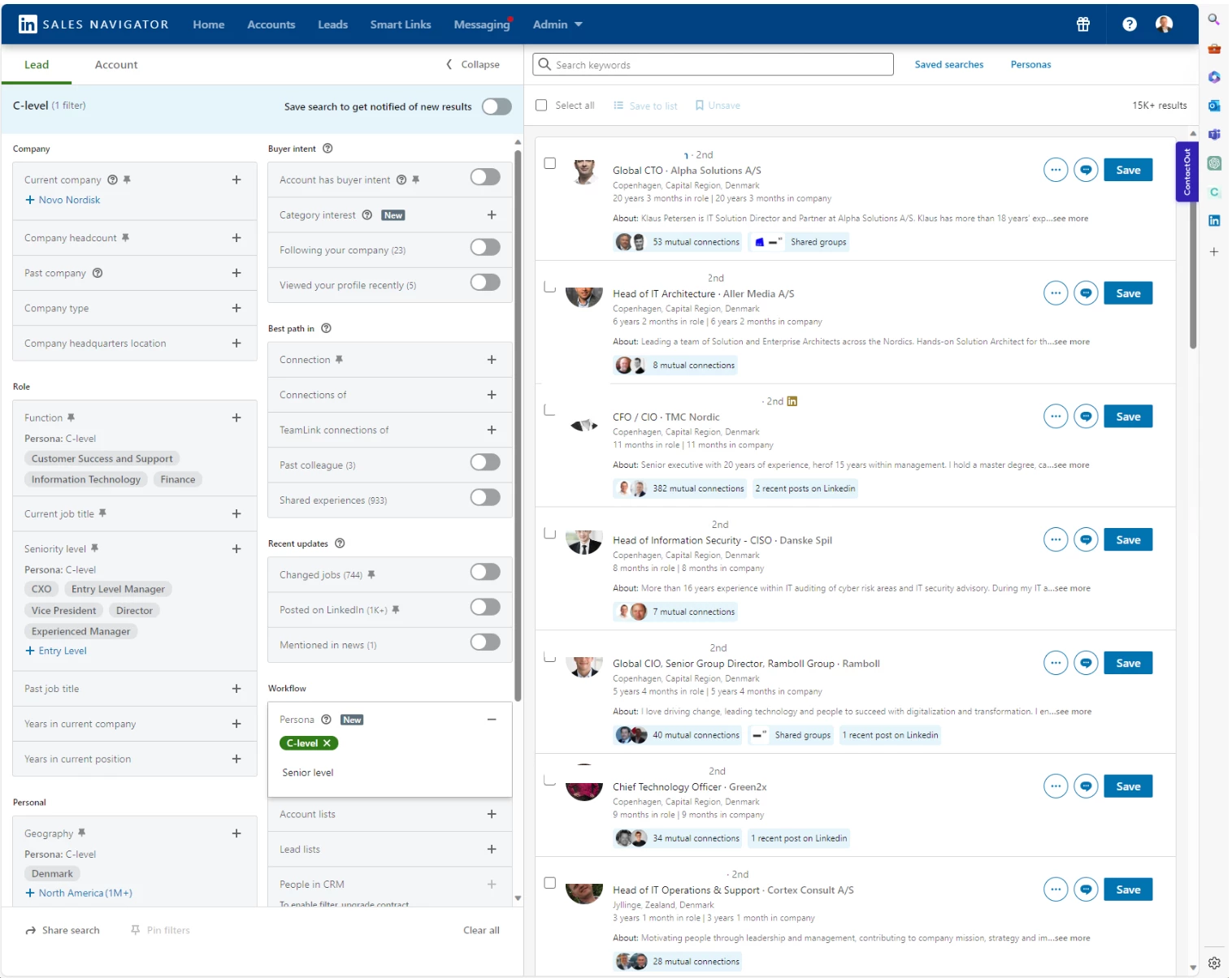
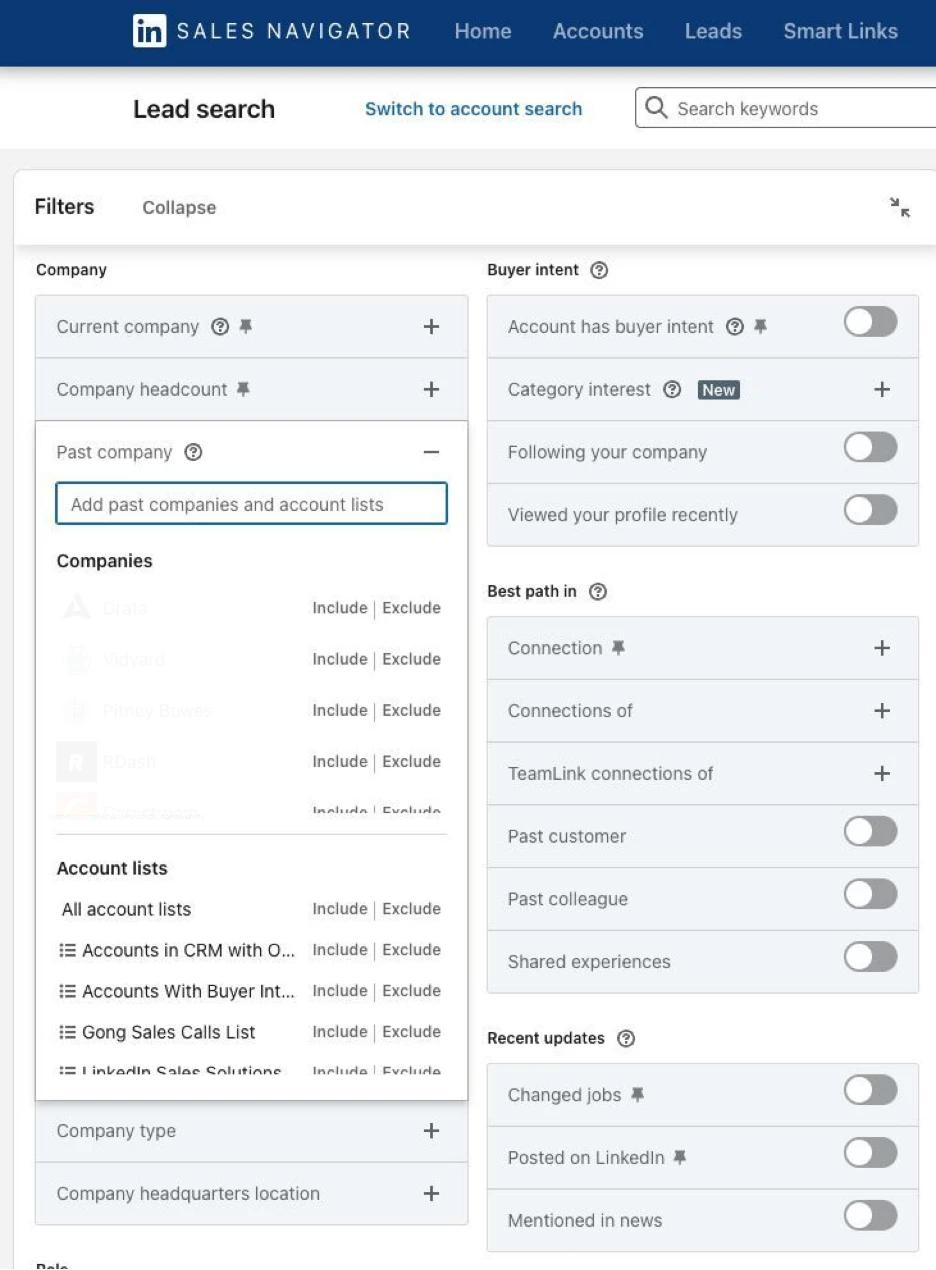
Lead Search is used to identify people who match a specific prospecting profile. Sales Navigator provides more detailed filters than normal LinkedIn search.
Useful filter groups include:
| Area | Example filters |
|---|---|
| Company | Current company, past company, company headcount, company type, headquarters. |
| Role | Current job title, function, seniority, past job title, years in current company or position. |
| Personal | Geography, industry, profile language, years of experience, school, LinkedIn groups. |
| Connections | 1st-, 2nd-, and 3rd-degree relationship paths. |
| Recent activity | Recent job changes and recent LinkedIn activity. |
Example Lead Search
Imagine I want to find Sales Directors at software companies in Germany. A search could combine:
- Current Job Title: Sales Director.
- Industry: Software / Technology.
- Geography: Germany.
- Company Headcount: 100–1,000.
- Seniority: Director.
- Recent Activity: Posted on LinkedIn.
- Connections: 2nd-degree.
The objective is not to find as many people as possible. It is to create a smaller, more relevant list of people who match the target profile.
6. Include and Exclude Filters
Filters can be used both to include desired prospects and to remove irrelevant ones.
For example, I might include Sales Director while excluding Director of Sales Operations if that role is outside the target persona.
Good prospecting is not “find as many people as possible.” It is “find the right people.”
7. Saved Searches
Once a useful search has been built, it can be saved so the filter combination does not have to be recreated each time.
Example saved search:
Germany SaaS Sales Directors
This makes prospecting more repeatable and gives the salesperson a reusable segment that can be revisited and refined later.
8. Lead Lists
Relevant people can be saved as Leads and organized into lists.
Example:
| Lead | Role |
|---|---|
| Anna | VP Sales |
| Michael | Head of Sales |
| Laura | CRO |
| Daniel | Sales Director |
Lead lists help organize prospects around a territory, campaign, account set, persona, or other sales motion. Sales Navigator can also recommend similar people once relevant Leads have been saved.
9. Account Search
Account Search works at the company level rather than the person level.
Useful Account filters can include:
- Industry.
- Company size.
- Headquarters location.
- Revenue.
- Headcount growth.
- Recent activity.
- Buyer Intent and other available signals.
Example:
Find German SaaS companies with 100–500 employees.
After identifying those companies, the salesperson can open each Account and search for relevant decision-makers inside it. This is particularly useful for account-based sales motions.
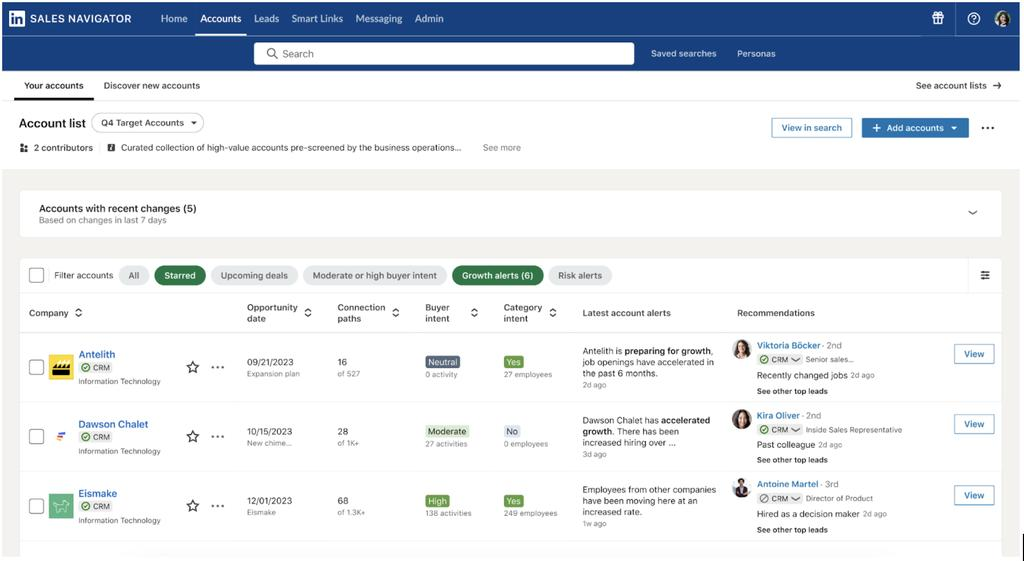
10. Account Hub
Account Hub is a central area for organizing and prioritizing target Accounts. It brings account information and signals together so a salesperson can decide where to focus attention.
Depending on the plan and available data, this can include:
- Saved Accounts.
- Important Account changes.
- Growth or risk signals.
- Connection paths.
- Recommended Leads.
- Buyer Intent.
- CRM opportunity information.
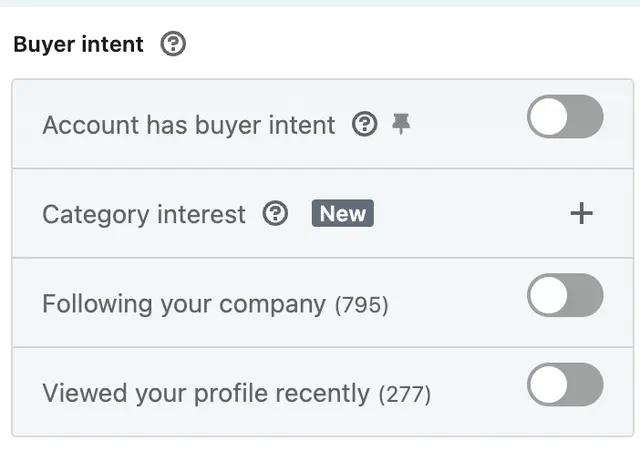
11. Buyer Intent
Buyer Intent helps prioritize companies or people that are showing stronger signs of interest or engagement.
The basic difference is:
Normal prospect: “Maybe they need our product.”
Intent prospect: “There are signals suggesting that this Account may be more interested right now.”
Intent signals can make prospecting more efficient because the salesperson can spend more time on Accounts where there is a stronger reason to engage.
12. Relationship Explorer
Relationship Explorer helps identify useful people inside a target Account. Instead of manually opening hundreds of employee profiles, it helps surface relevant people based on personas, relationship paths and other available signals.
It can help answer:
Who should I speak with inside this company?
It is also useful for multi-threading: building relationships with several relevant people in the same Account instead of depending on a single contact.
13. Warm Paths and Connections
Cold outreach is not always the best route. Sales Navigator can help identify whether someone in the seller’s network already knows the prospect.
Example:
I want to contact a VP Sales → my colleague already knows that person → I can ask for an introduction.
This creates a warm path into the Account and can make the outreach more relevant and credible than a completely cold message.
14. Alerts and Sales Signals
Once Leads and Accounts are saved, Sales Navigator can surface updates that create reasons to engage.
Examples include:
- A Lead changed jobs.
- A Lead posted on LinkedIn.
- A prospect engaged with content.
- An Account is growing or hiring.
- A company has a meaningful organizational change.
- Buyer Intent increases.
The signal creates context for outreach.
Generic: “Hi John, would you like to see our software?”
Signal-based: “Hi John, I noticed you recently joined Company X as VP Sales...”
The value of a signal is not the notification itself. The value is having a relevant reason to start a conversation.
15. Homepage
The Sales Navigator homepage can be thought of as a sales-focused feed. Instead of simply showing general LinkedIn content, it surfaces information about saved Leads and Accounts that may matter to the salesperson.
The practical question is:
What changed with the prospects and Accounts I care about?
16. InMail
InMail allows a salesperson to message LinkedIn members without already being connected to them. This is useful when a relevant prospect is outside the seller’s existing network.
The best use of InMail is not mass messaging. Strong messages normally use information about the prospect’s:
- Role.
- Company.
- Recent activity.
- Job change.
- Business problem.
- Shared connection.
- Recent post.
- Company signal.
A useful message structure is:
Signal → Relevance → Problem → Question.
The goal of the first message is usually to start a conversation, not to force an immediate sale.
17. CRM Integration
Sales Navigator can connect prospecting activity with supported CRMs. Depending on the CRM, subscription and configuration, the integration can support workflows such as:
- Bringing CRM Accounts into Sales Navigator.
- Showing CRM context next to LinkedIn information.
- Creating or updating contact information.
- Writing selected sales activities back to the CRM.
- Logging InMail activity.
- Identifying whether a Lead already exists in the CRM.
- Using CRM data to improve prospecting and prioritization.
Sales Navigator + Salesforce Example
Imagine Salesforce contains:
Account: Personio
Opportunity: Sales Automation Platform
A salesperson can use Sales Navigator to research:
- Who works at the Account.
- Who the decision-makers are.
- Whether someone recently changed role.
- Whether relevant people are active on LinkedIn.
- Whether there are warm connection paths.
- Whether the Account is showing useful signals.
Sales Navigator provides prospecting and relationship intelligence.
Salesforce remains the system of record for the sales process.
18. Sales Navigator vs CRM
| Sales Navigator | CRM |
|---|---|
| Discover prospects. | Store and manage customer records. |
| Research people and companies. | Track opportunities and deal stages. |
| Find decision-makers and warm paths. | Track activities and ownership. |
| Monitor sales signals. | Manage pipeline and forecasting. |
| Support prospect engagement. | Maintain the formal sales process. |
Simple distinction:
Sales Navigator: Who should I find, research and engage?
CRM: What is happening with this customer or deal?
19. Smart Links
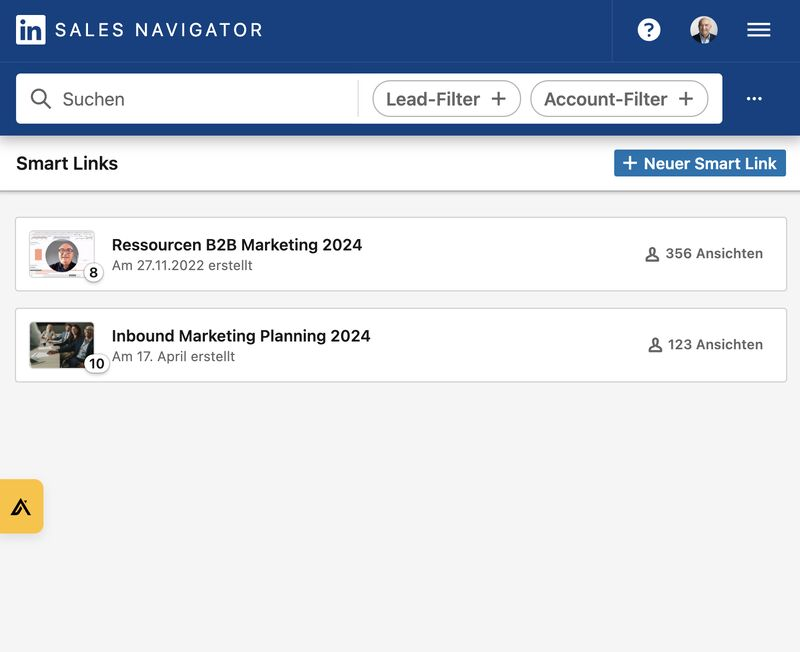
Smart Links can be used to package and share sales content while giving the seller visibility into how prospects interact with that content.
For example, a seller could share:
- A product deck.
- A case study.
- Pricing information.
- Other sales collateral.
The resulting engagement information becomes another useful signal during the sales process.
20. End-to-End GTM Example
Imagine a company sells an AI sales-automation platform.
| Step | Action |
|---|---|
| 1. Define ICP | German SaaS companies with 100–1,000 employees. |
| 2. Account Search | Find companies matching the ICP. |
| 3. Save Accounts | Create a focused target-account list. |
| 4. Find Leads | Search for VP Sales, CRO, Head of RevOps and Sales Operations leaders. |
| 5. Prioritize | Look for recent job changes, activity, growth, intent and warm connections. |
| 6. Research | Review role, posts, company changes and shared connections. |
| 7. Outreach | Send a personalized connection request, LinkedIn message or InMail. |
| 8. CRM | Add or sync relevant prospect and Account information with Salesforce or another CRM. |
| 9. Follow-up | Watch Lead and Account alerts for new reasons to engage. |
21. The Most Important Idea
Sales Navigator is not simply a database for finding contact information. Its value comes from combining:
- LinkedIn professional data.
- Advanced search.
- Account and Lead organization.
- Relationship intelligence.
- Sales and intent signals.
- Prospecting workflows.
- CRM integration.
The goal is to improve the sequence:
Right Account → Right Person → Right Time → Right Context → Better Outreach.
Quick Reference
| Concept | Meaning |
|---|---|
| Sales Navigator | LinkedIn’s B2B sales prospecting and relationship-intelligence platform. |
| Account | A company. |
| Lead | A person inside or related to an Account. |
| ICP | The type of company that is the best potential customer. |
| Lead Search | Find people using role, company, geography, relationship and activity filters. |
| Account Search | Find target companies using firmographic and sales criteria. |
| Buyer Intent | Signals that can help prioritize Accounts showing stronger interest. |
| Warm Path | A connection path through someone already in the seller’s network. |
| InMail | A way to message relevant LinkedIn members without first being connected. |
| Multi-threading | Building relationships with several relevant people in the same Account. |
| CRM | The system used to manage customer records, activities, opportunities and pipeline. |
Sources & Further Reading
This notebook was built from a Sales Navigator tutorial and cross-checked against LinkedIn’s Sales Navigator Help documentation. Product interfaces and plan-specific features can change over time, so LinkedIn’s current documentation should be treated as the source of truth for exact availability.